

Making the Move to the Cloud in 3 Simple Steps
Here, we’ll show you three simple steps on how you can quickly and easily import your data from the desktop version of BrightPay to the cloud-based solution. Reap in the benefits of processing your payroll from anywhere, at any time, from any device.
If you’re not already using BrightPay Cloud, now is the perfect time to make the switch from the desktop version. We’ve made the transition simple, so you can move forward with confidence and focus on what matters most, running your business.
Key benefits of moving to BrightPay cloud
Before we outline the three-step process of moving from BrightPay for Windows to BrightPay cloud, here’s some of the key benefits you’ll experience after making the switch:
Access your payroll software from anywhere, at any time, from just one tab on your browser
Multiple users can work simultaneously on a client file
Automatic payroll data backups BrightPay will be fully responsible for data hosting
Create multiple pay schedules with different period end dates
Our cloud-based solution has a similar user interface, which means there’s little to no training required
How to migrate from BrightPay for Windows to BrightPay cloud
Go to https://brightpay.brightsg.com and log in to BrightPay cloud using your BrightID. If you have already purchased BrightPay, or used BrightPay Connect or other Bright Products, you will already have a BrightID.
If you don’t have a BrightID, click Sign up for a BrightID.
Once signed into BrightPay you will need to set up an Organisation. You can set
this up under Welcome to BrightPay or under My Organisation.
Click on Welcome to BrightPay and follow 3 simple steps.
Step 1: Set up an organisation
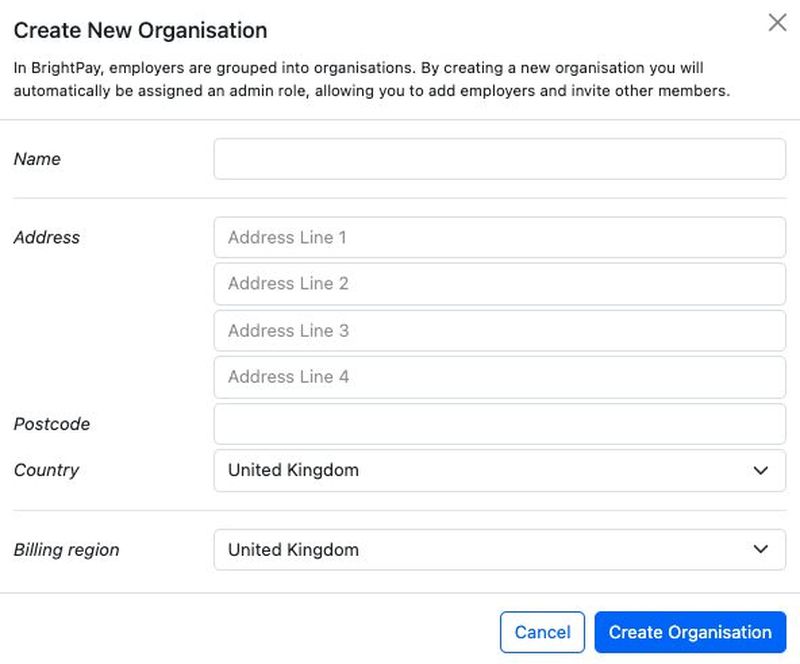
This is where employers, team members and billing will be managed. Please note that the user who registers the organisation will be automatically assigned as the Owner role of an organisation.
Click Create Organisation.
Enter organisation name
Add the contact details.
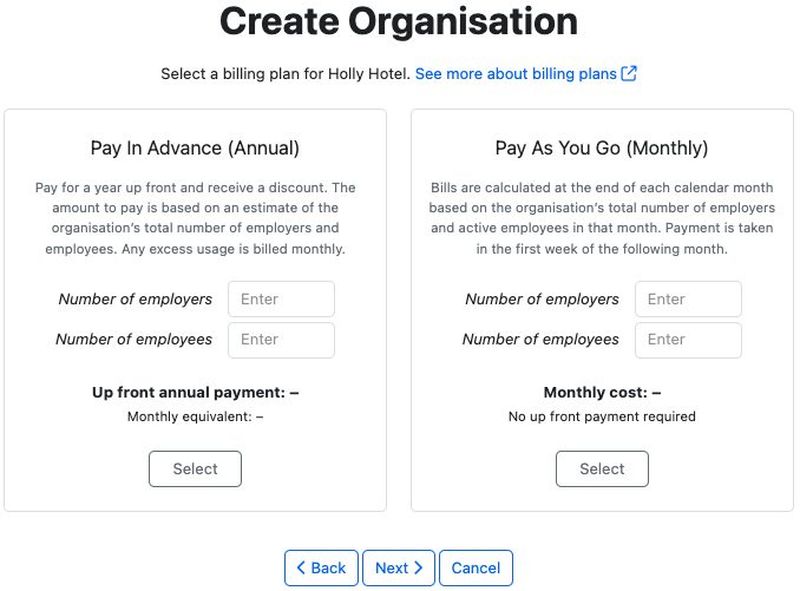
Enter in the amount of Employers and the number of Employees under the Annual or Monthly plan you wish to use to pay for BrightPay and it will show the Annual or Monthly cost.
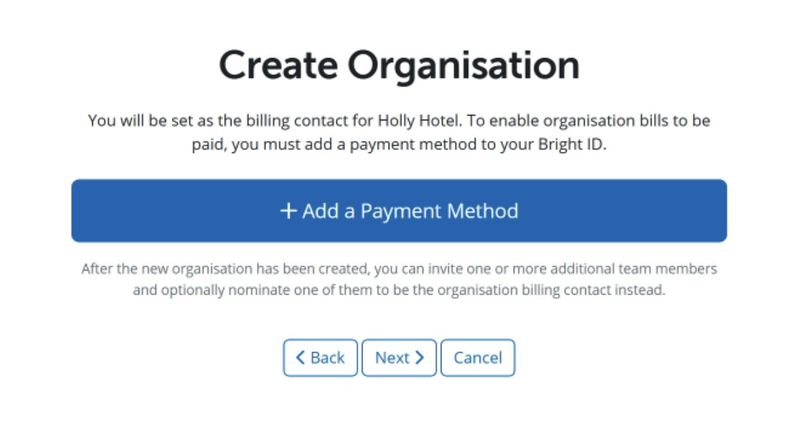
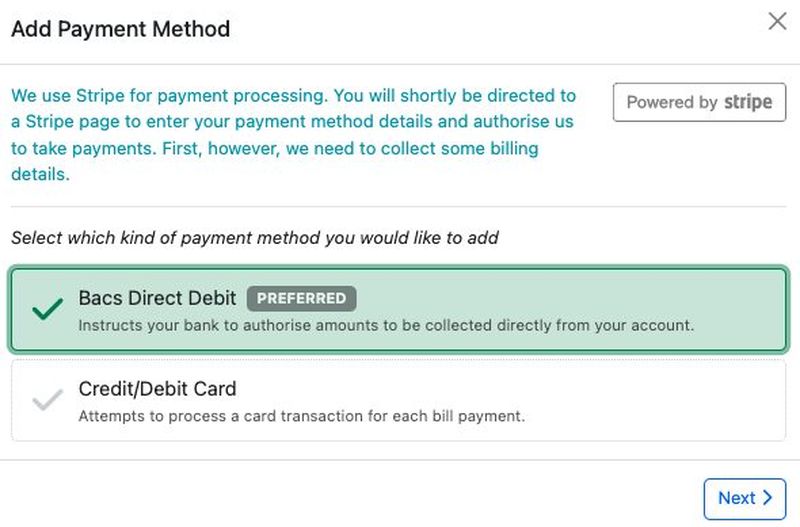
Add the Payment Method
Step 2: Add New Employer
Once your Organisation is set up, the Step 2 is to Add New Employer or Import Employer from windows/Mac. Choose the second option.
Review the post-import checklist
Each client imported will need to be associated with an organisation. Choose the organisation from the drop-down menu.
If you wish you can mark an employer as available to admin members of the organisation only. This means that only the owner and administrator members of the Organisation will be able to see this employer when they access BrightPay.
Once you click Next. Click on the blue text Select data file(s) to upload and choose the file(s) you wish to upload.
If you have multiple employers you wish to import at the same time, please select shift and select the multiple employer files you wish to import and then select upload.
The employer files will start to import into BrightPay. This should take about 30 seconds. The employer files will be highlighted in green once they are imported successfully
The employer details will be displayed on the employer home screen now. Click Close.
Step 3: Open Employer
Open your employer and you are ready to process your payroll.
All your employer’s information such as payslips finalised, year-to-date information, pre-built reports, pension details, etc. will all be imported successfully. The employer will be then listed on the home screen, ready for use.
If you wish to add another company, click on the Import icon> Import from BrightPay for Windows or Mac and follow the same steps.
Experience the benefits of BrightPay cloud
And there you have it! You’ve now successfully imported a client’s payroll data to BrightPay (cloud). You can now reap the benefits that come from moving to the cloud enjoy multi-user accessibility, changes made in real time, and automatic payroll data backups.
Don’t hesitate to reap the rewards of cloud payroll
Moving from desktop to the cloud isn’t as daunting as it seems, right? With the benefits of greater flexibility, efficiency, and automation, transitioning to cloud payroll is a game-changer for your business. By making the move, you’ll streamline operations, reduce manual workload, and future-proof your payroll process. So why wait? Take the next step today and unlock the full potential of a smarter, more modern payroll solution!
This content may have been developed with the assistance of AI tools. Content is reviewed by a member of the Bright team before publication. Guidance on legislation can be obtained from your industry body.
Talk to our team
See how Bright can help your practice.