

Watch and learn
BrightPay Cloud UK Tutorials
We’ve put together a series of how-to videos that are designed to help you learn, use and get the most out of BrightPay.

Easy onboarding to BrightPay cloud
Step 1
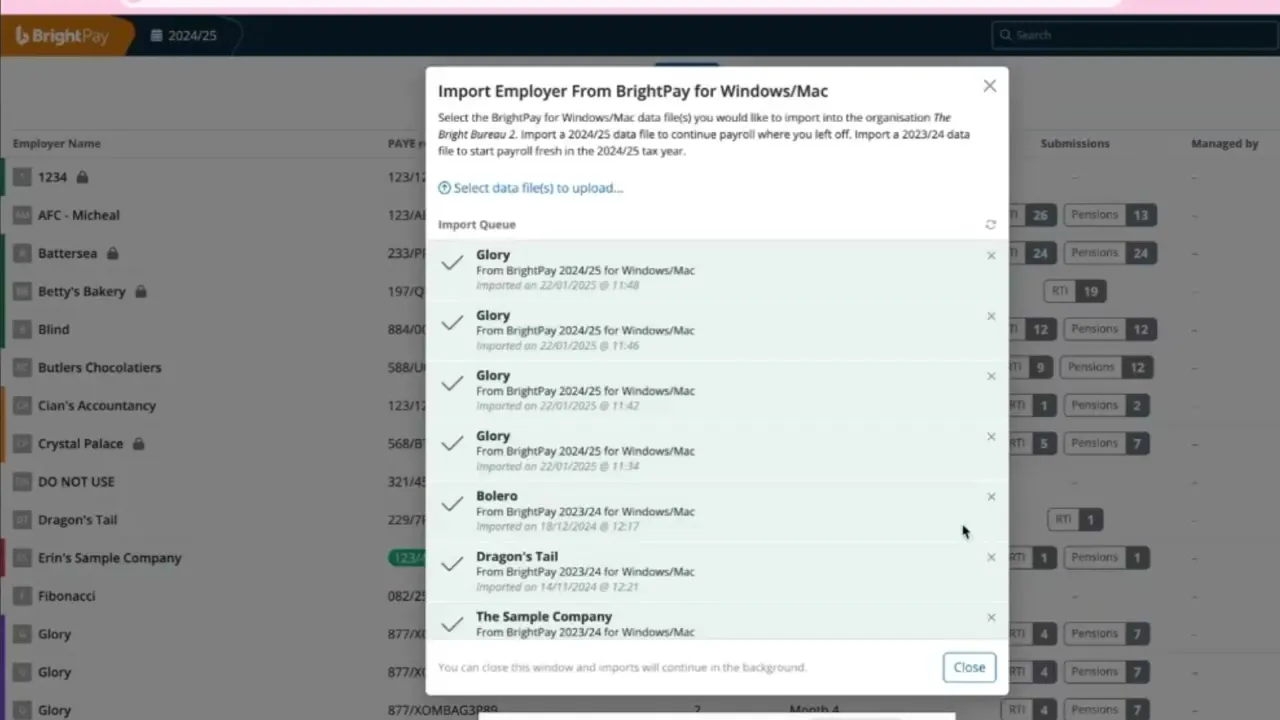
Transfer your data into BrightPay
In just a few clicks you can transfer your data into BrightPay.
It’s quick and easy – take a look at this short demo.
Step 2
Add your Government Gateway details
Navigate to the settings icon in the top right hand of the screen. Under this you will see "Gateway Credentials" – enter your information here.
If you are using Agent Settings, these can be added through "Agent Settings" in the same location.
FAQs
Onboarding support
Where can I view my expected bill?

Where can I view my expected bill?
Do I have to add attachment orders again?
Do I have to add attachment orders again?
Will my bank details all come across?
Will my bank details all come across?
Do I need to set up my payroll journal mapping again?
Do I need to set up my payroll journal mapping again?